How to Extract Data from PDFs in Power Automate
Learn how to extract structured data from PDFs in Power Automate using AI and validate uncertain predictions with human review.
Ståle Zerener
Co-founder & CEO
This guide shows how to extract structured data from PDFs in Power Automate using Cradl AI. You’ll send PDF attachments to an AI model, return the extracted data as JSON, and use the results in later flow steps, such as writing to Excel, Dataverse, SQL, SharePoint, or another system.
For broader implementation principles, see The 2026 Guide to Document Data Extraction Using AI. If your documents are invoices specifically, follow the dedicated Power Automate invoice extraction guide.
We’ll also add human review for uncertain predictions, so low-confidence values can be checked before they continue through your workflow. This is useful for invoices, bank statements, purchase orders, order confirmations, bills of lading, receipts, contracts, and other business documents with varying layouts.
For a product overview of this Microsoft workflow, see Power Automate PDF parsing. For more on why confidence and review matter, see Using LLMs for OCR and PDF Parsing.
Before we start
You’ll need:
- A Microsoft account with a Power Automate license
- A Cradl AI account
Step 1: Set up your AI agent
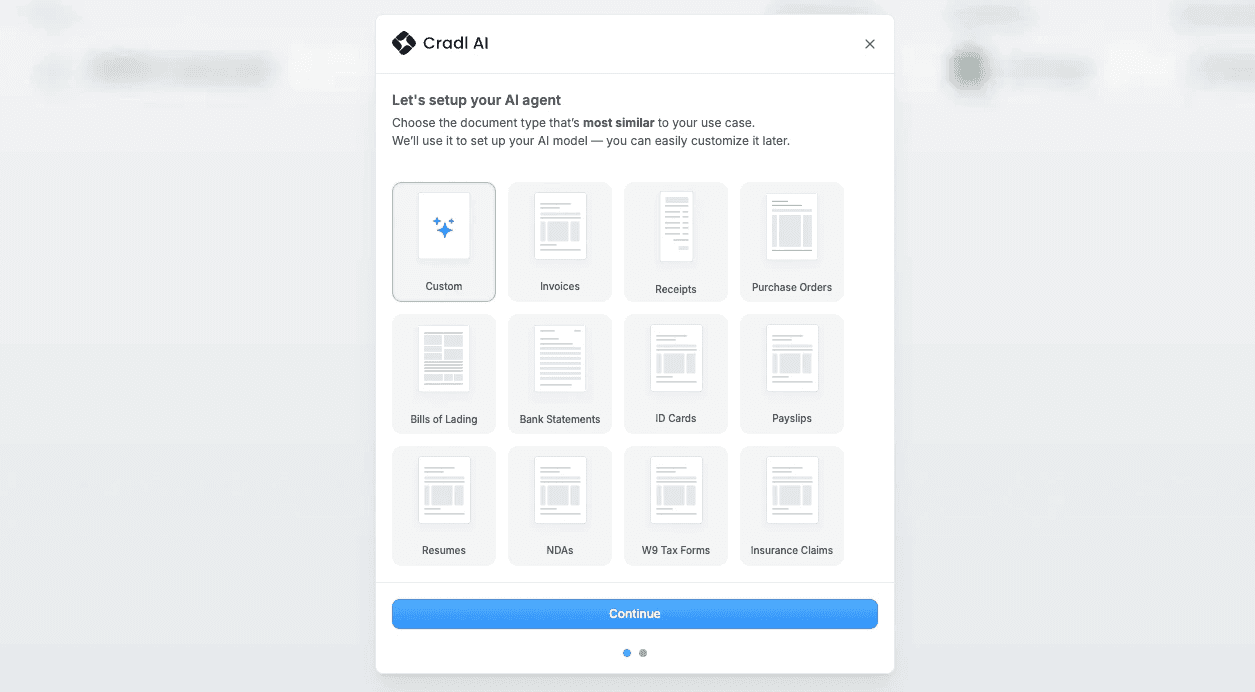
In Cradl AI, choose Custom in the onboarding dialog. This simply gives you a starting point with a set of predefined fields based on a sample document you upload. In this example, I’ll use an invoice. You can easily customize the fields to fit your exact requirements at any time. For now, we’ll stick with the auto-generated ones to keep things simple.
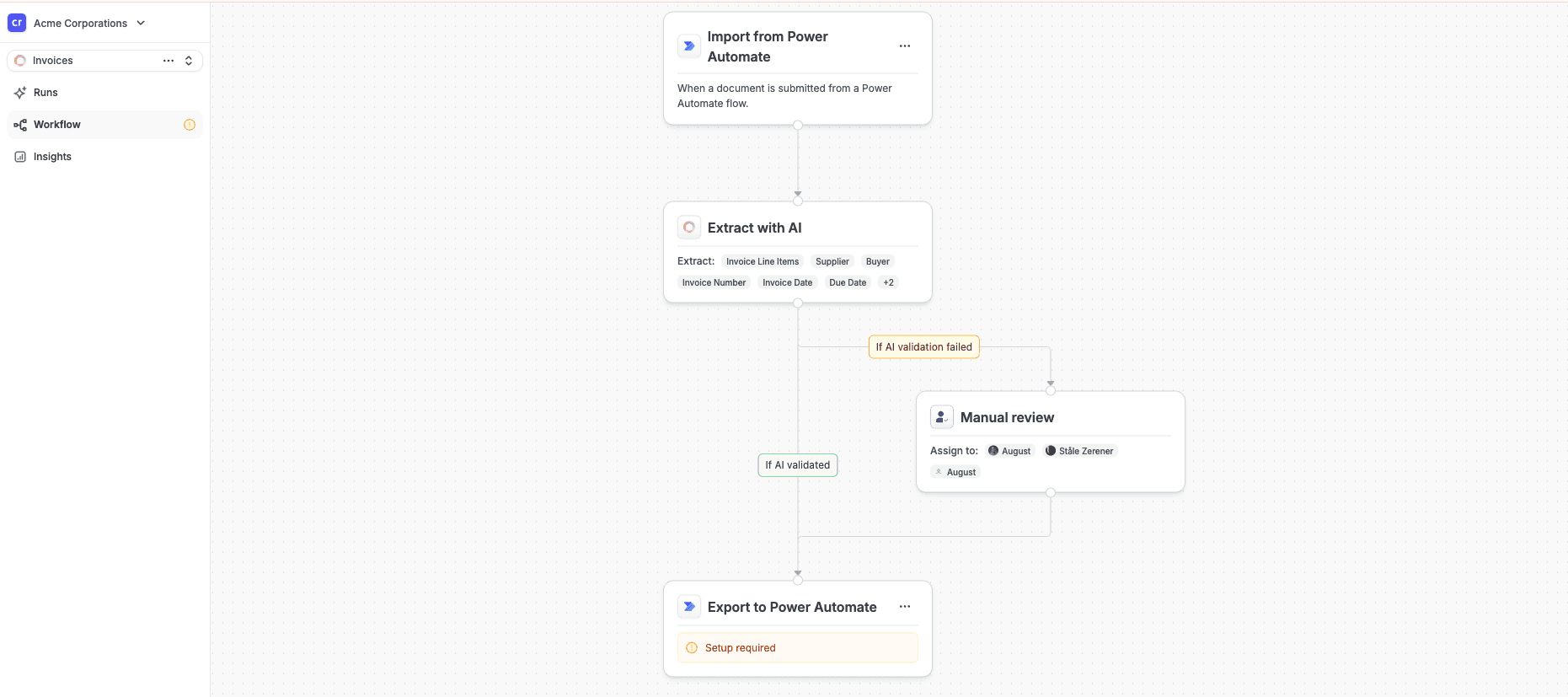
Next, go to the Workflow tab and add both a Power Automate trigger and a Power Automate export. When you’re done, your workflow should look something like this:
Step 2: Create a connection
Next, head over to Power Automate and either open an existing flow or create a new one.
In this example, we’ll assume our PDFs are fetched from a OneDrive folder and that we want to write the extracted data to a Dataverse table. To connect Cradl AI to your Power Automate flow, add a new action and search for “Extract data from document.” Select it, then create a new connection to your Cradl AI account:
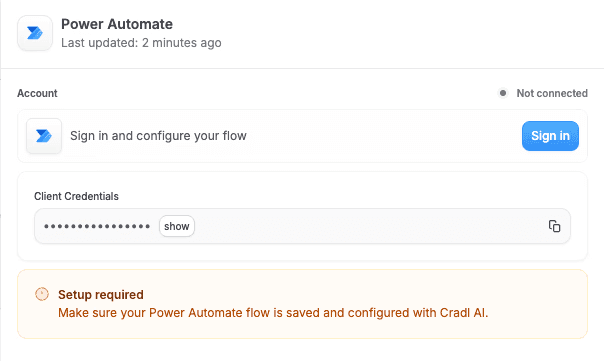
In Cradl AI, go to Workflows, click Export to Power Automate, and copy the Client Credentials. Then paste those credentials into the Client Credentials field in Power Automate.
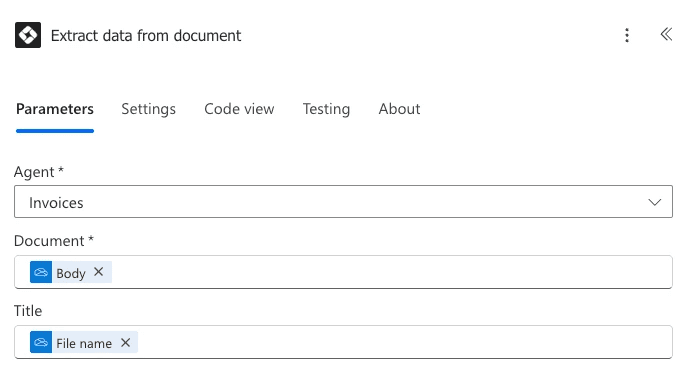
Next, configure the Extract data from document action. Select your newly created Custom agent from the dropdown. For the Document field, choose the Body variable from the previous step.
Step 3: Build the Power Automate flow
Now let’s put everything together by building a Power Automate flow that:
- Retrieves PDFs from a OneDrive folder
- Sends the PDF to Cradl AI for processing
- Writes the extracted data to a Dataverse table
When we’re done, your flow will look like the diagram below. If you’d rather skip ahead, you can download the complete Power Automate solution from the Power Automate integration page and start using it right away.

Here’s how to configure each action:
When a file is created: In the trigger, select the folder you want to monitor.
Extract Data from Document: Select the agent you created earlier and map the file from the previous step as the document input. For the Document input, select the Body variable from the previous step.
Add a new row: Finally, append the extracted data as a new row to your Dataverse table by mapping the extracted fields to the right columns.
Step 4: Take it for a spin!
Now you’re ready to test the flow. Because we set it up to process documents from a OneDrive folder, add a sample document to the folder you configured and make sure everything runs as expected:
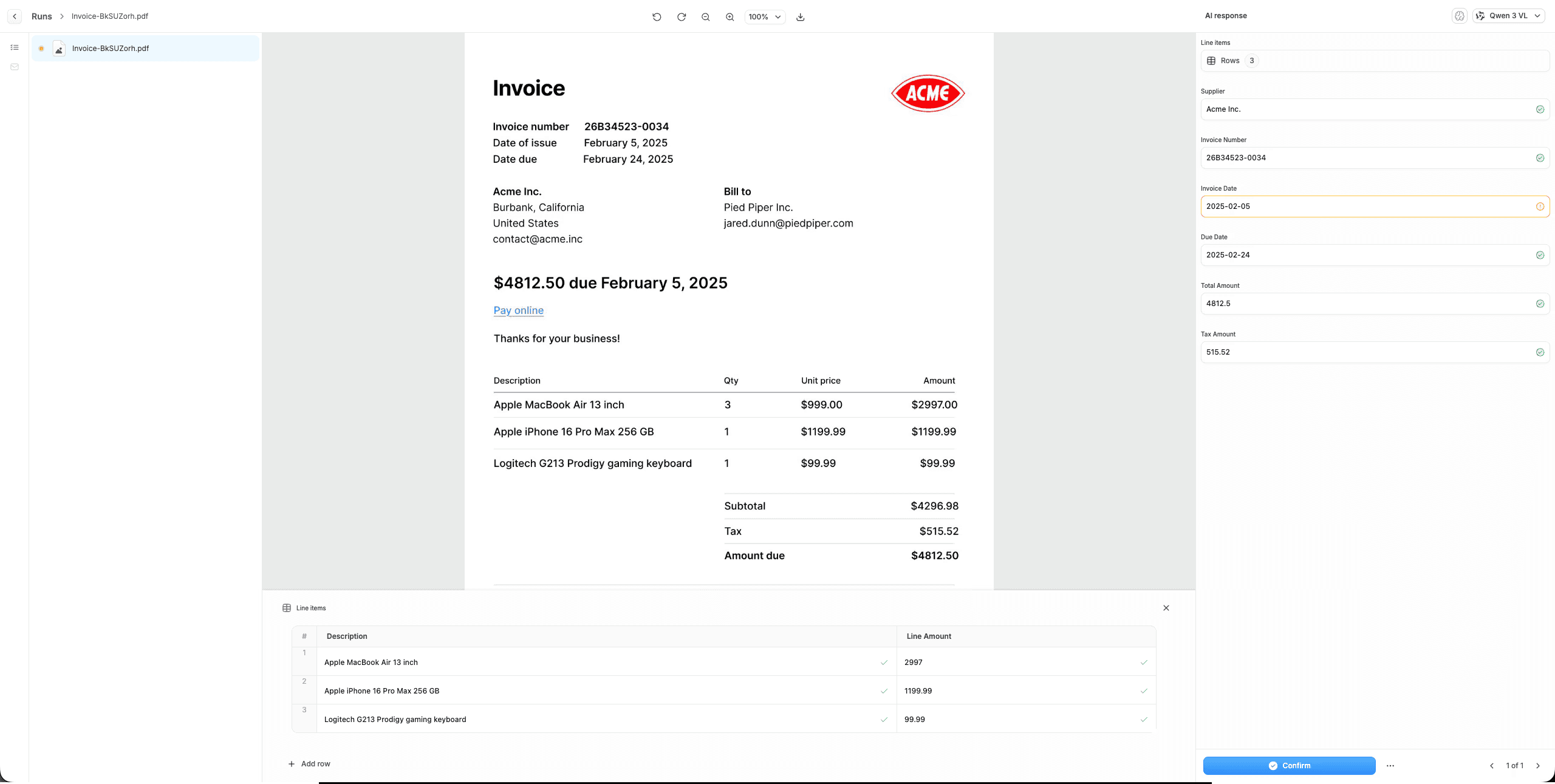
Since this is the first document being processed, the AI will be conservative about what it approves automatically. In this case, you might be asked to confirm that the invoice date was interpreted correctly. After you’ve validated a few documents, the AI will become more confident over time. You can also adjust the automation thresholds manually if you want more, or less, automatic approval.
Wrapping up
That’s all you need to build a basic document processing pipeline in Power Automate using Cradl AI.
The next step is to add more advanced processing and validation logic. For example, you can match master data from a SQL database or even a SharePoint list. This helps you build a more robust and reliable process, with fewer manual checks and fewer surprises downstream.