How to Convert PDFs to JSON Using AI
A step-by-step guide to using AI to convert PDFs to structured JSON in automated workflows.
August André Kvernmo
CTO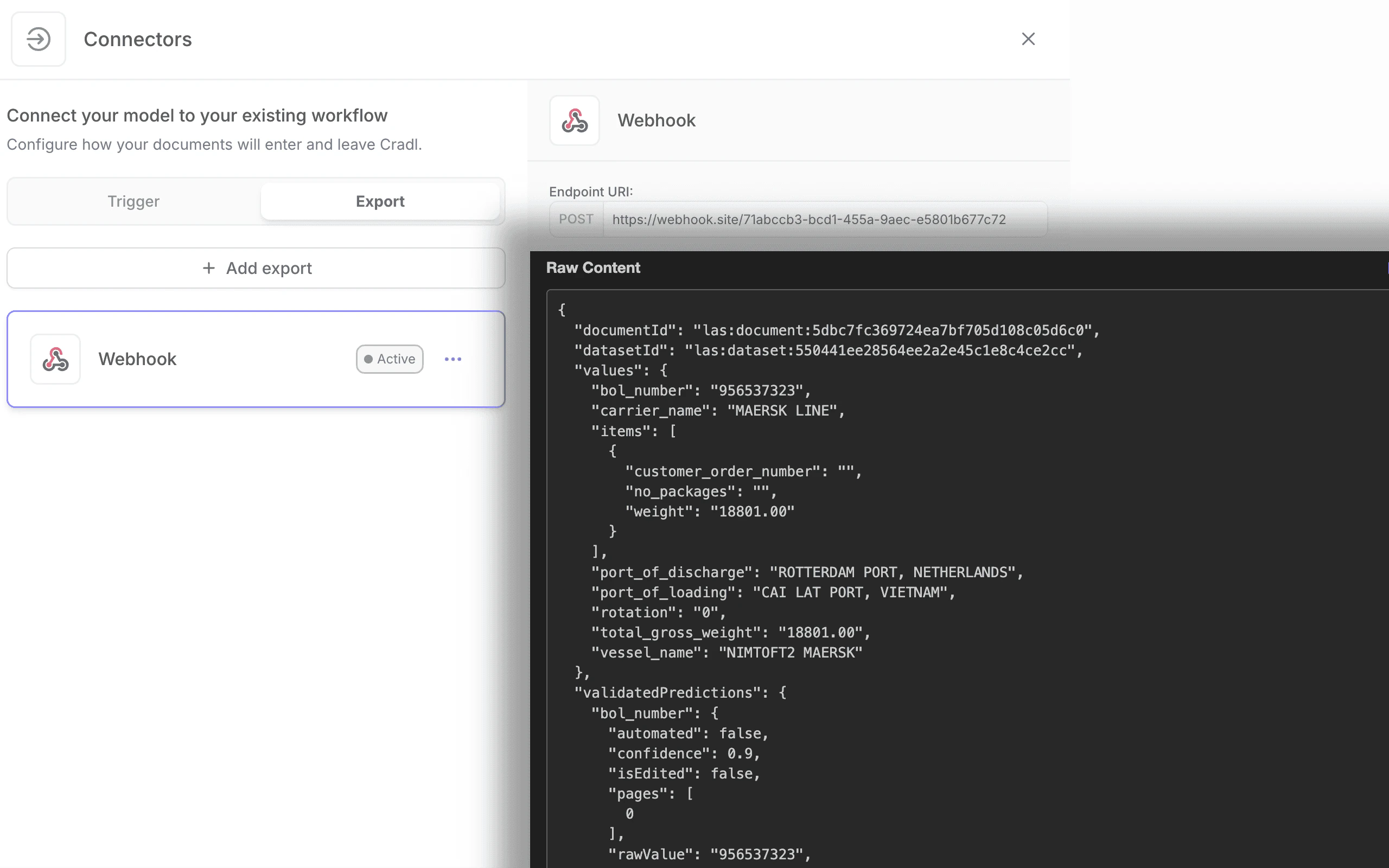
Converting PDFs to JSON is a common challenge when working with documents like invoices, bills of lading, receipts, contracts, or forms. PDFs aren’t built for structured data exchange, and manual extraction into JSON is slow, brittle, and hard to maintain at scale. AI makes it possible to extract structured data from PDFs and convert documents into clean, machine-readable JSON with far fewer errors.
In this post, we show how to set up an AI model that automatically extracts data from PDFs and outputs validated JSON in minutes, using large language models with human-in-the-loop review.
For a broader implementation view, start with The 2026 Guide to Document Data Extraction Using AI. If you are evaluating whether LLMs should handle OCR directly, see Using LLMs for OCR and PDF Parsing.
For a production-ready overview, see Cradl AI PDF-to-JSON automation.
Before we get started
You’ll need:
- A Cradl AI account
- (Optionally) An HTTP endpoint (webhook)
Running your first PDF extraction
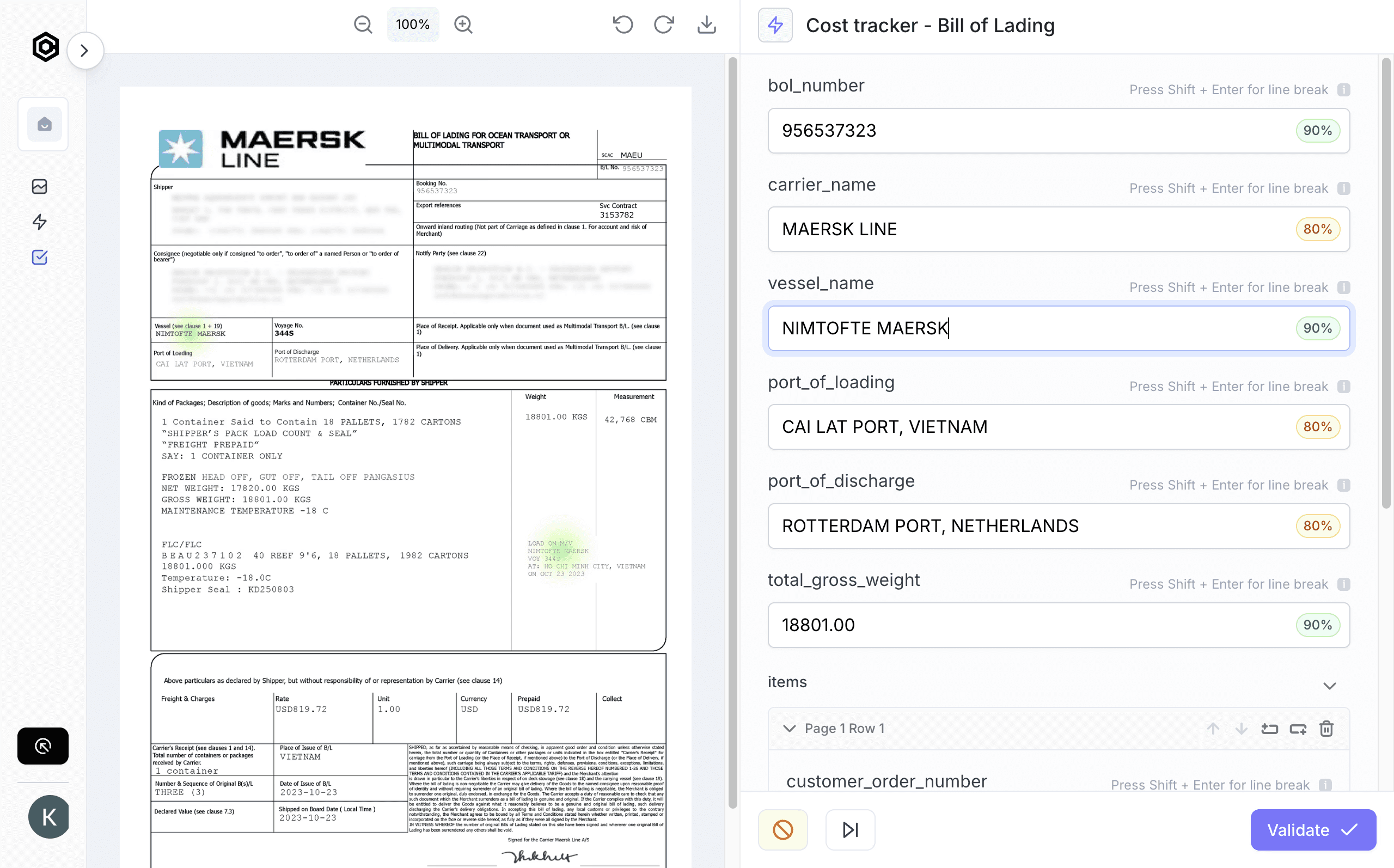
To get started, create a new agent and choose either one of the preconfigured agents or the Custom option. If prompted for integrations, skip it for now; we’ll add it later. When you create the agent, a document will automatically be uploaded and parsed. Click the document in the Runs tab to review the extracted data.
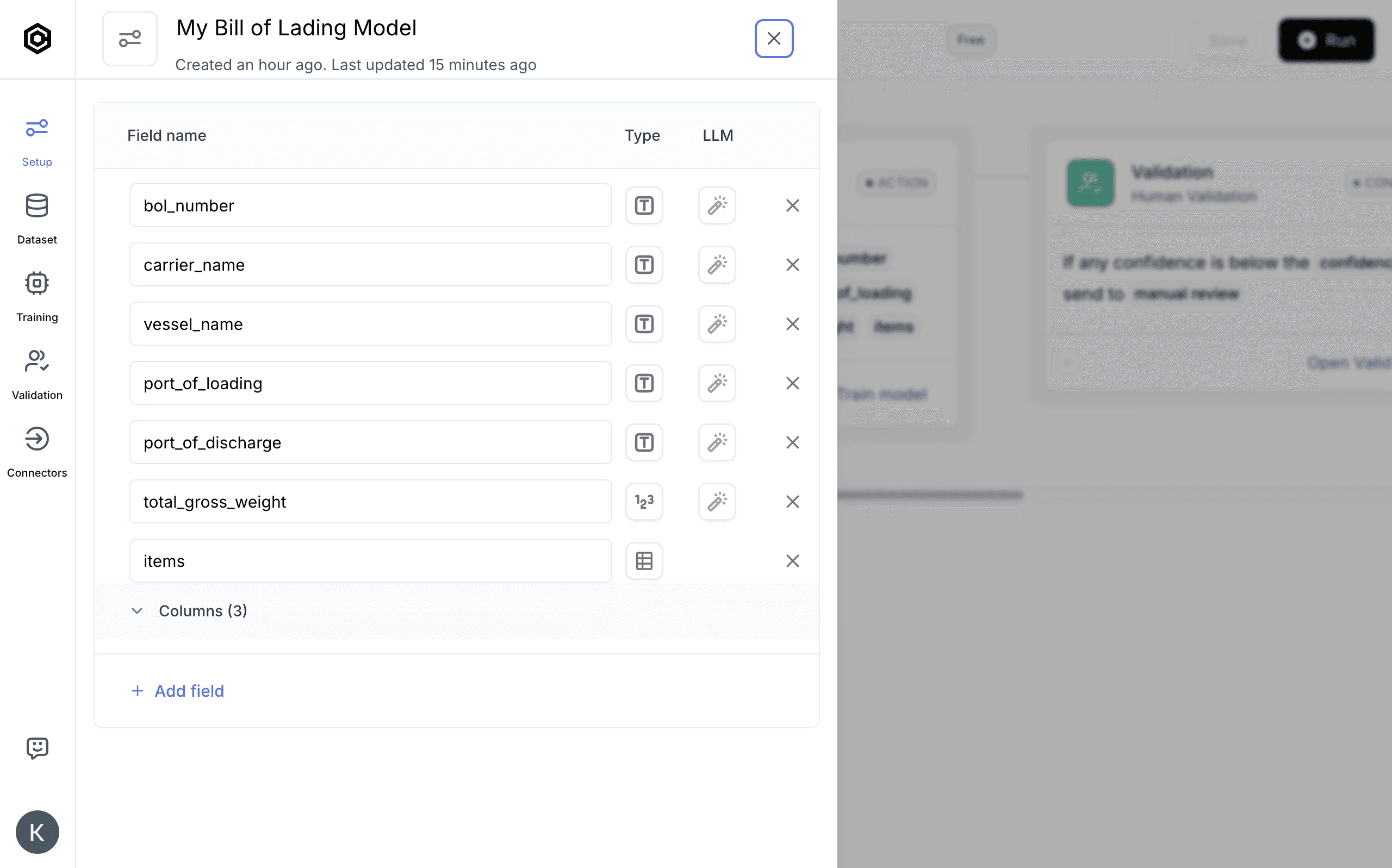
Now we’re going to customize the fields that we want our agent to extract. Open the Workflow tab and select the Extract with AI node. From there, you can add, remove, or refine fields based on your needs. After you’re satisfied with your model, go back to Runs to upload a new document to see how your agent performs.
Configuring human-in-the-loop validation
By default, your agent is created with human-in-the-loop validation. This means that if AI is uncertain about whether it has extracted the right information, the document will be routed to a manual reviewer. You can define which uncertainty level you tolerate in your agent by clicking the Review by human node in the workflow builder.
If you want all values to be sent directly to your webhook without human-in-the-loop review, you can remove all validators from your fields.
Exporting the data to JSON
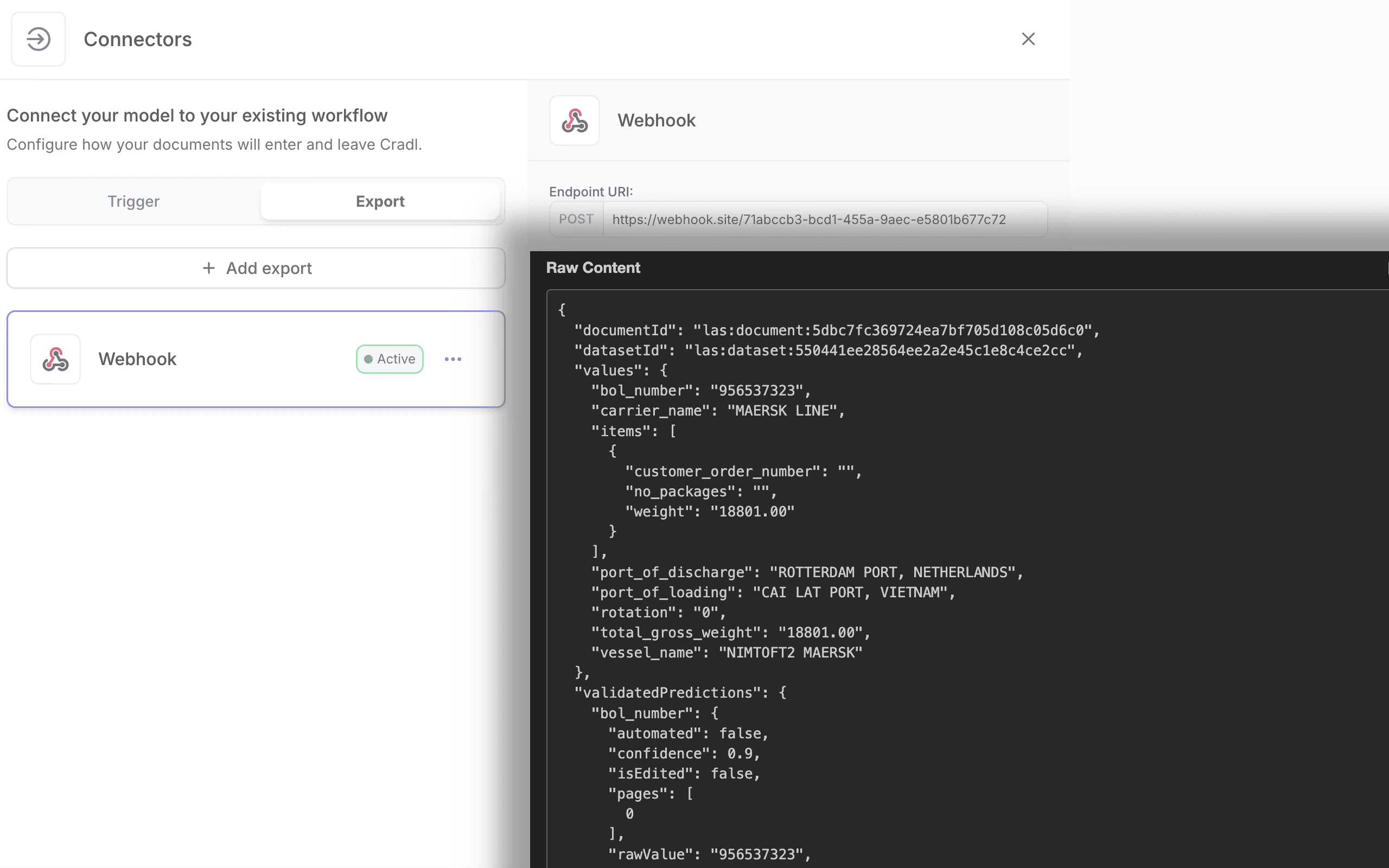
With your AI model set up, converting a PDF or image to JSON is as simple as clicking Run, uploading a document, and waiting for your AI model to process the document. Once it is processed, you can view the extracted data. You can manually download the extracted data in JSON format or set up an automatic export through the Webhook integration. To do this, you’ll need an HTTP endpoint.
This can easily be done in platforms like Zapier, Power Automate, n8n, and more by choosing a webhook trigger or HTTP request trigger. Cradl AI also has native integrations for Power Automate, n8n, and webhooks, so if you’re planning to integrate with them, I recommend using the native integrations instead.
Automating PDF to JSON conversion with webhooks
In many industries, the volume of incoming documents makes manual PDF to JSON conversion impractical. Fortunately, Cradl AI allows you to easily automate this process entirely. Let’s use our webhook integration as an example:
- Visit webhook.site, which auto-generates a unique webhook URL that you can use for testing. Copy it.
- Back in Cradl AI, select “Webhook” from the export options and paste the webhook URL.
- Upload and validate a document. Its JSON output will be sent directly to your test webhook, ready for integration with your other apps!
Cradl AI integrates with popular apps and platforms like Excel, Google Sheets, Zapier, Power Automate, UiPath, email, and APIs.
Summary
Cradl AI makes it easy to automate PDF-to-JSON workflows by using AI models to extract information from PDFs and send structured JSON to any app that supports webhooks.
If your output is tabular rather than nested JSON, the PDF tables to Excel guide walks through the spreadsheet version of the workflow.